Phantom Flex 4K
Connection
The Phantom Flex4K connects to bitbox using 100Mbit Ethernet and a standard Phantom Flex 8-pin Fischer to RJ45 cable.
While the Flex4K will link at 100mbps, we have found that it is only truly compatible with gigabit Ethernet, regardless of the actual link speed. To this end, we can only recommend bitbox for this camera. bitbox Mini will not work reliably.
The Phantom Flex/Onyx/Miro system is unique because the IP of the camera is fixed. You will instead need to configure your control device to use the IP address space of the camera. You can configure a secondary camera IP in advanchttps://support.bitpart.com/cameras/flex4k/ed configurations, but that is outside the scope of this documentation.
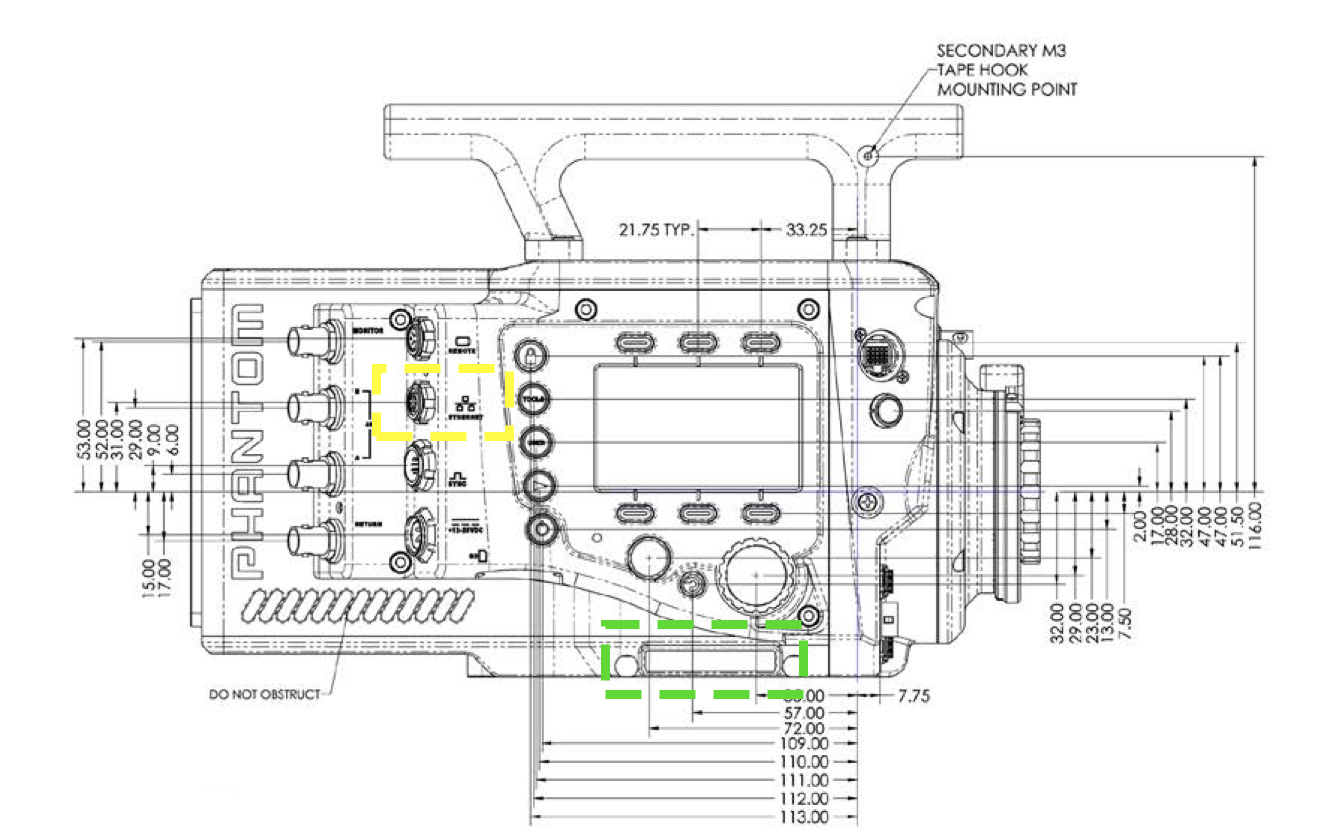
Camera IP Address
- Locate the IP address of the camera printed on the serial number label on the camera body. Its location is highlighted in green on the above illustration.
- Set your control device address to use an address in the same
/24subnet (255.255.255.0) as the camera.
The serial number label has two IP addresses, IP (commonly 100.100.x.x) and XIP (commonly 172.16.x.x).
The IP is used for camera control.
Control Applications
At this time, we recommend using iPhantom for iOS by Joe Kocsis for Phantom control.
Semote is also an excellent option.
Common Issues / Troubleshooting
Is bitbox fast enough for triggering a Phantom?
Yes, the minor latency caused by a wireless connection is no issue for triggering Phantom cameras.
Can I use PCC?
In testing we have found that PCC is optimized for wired connections and requires too much bandwidth to be reliable over a wireless link.
Connector Pinout
Ethernet connector part number: Fischer S-103-A-058-130
| Pin | Use |
|---|---|
| 1 | ETH RX+ |
| 2 | ETH RX- |
| 3 | ETH TX+ |
| 4 | ETH TX- |